A 100 on Google PageSpeed Insights is realistic, even for a website that has to present 20+ brands. Our Stardom Now case study reports a 100 desktop score for exactly that kind of site.
In this article
- What a "100 PageSpeed Score" actually measure?
- The seven areas that move the score most
- 1. Images
- 2. JavaScript
- 3. Fonts
- 4. CSS
- 5. Layout stability
- 6. Hosting and delivery
- 7. Design decisions
- Mistakes to avoid
- • Chasing 100 on one run.
- • Optimizing only the homepage.
- • Lazy-loading the hero image.
- • Removing things users need just to hit a score.
- • Ignoring mobile and real-user data.
- • Letting it slip after launch.
- How to measure it properly
- Does a 100 score help your Google rankings?
- What a 100 score looks like in practice
- Frequently asked questions
- Is a 100 PageSpeed score necessary?
- Does the PageSpeed score directly affect Google rankings?
- Why is my mobile score lower than my desktop score?
- Why does my score change every time I test?
- How long does it take to speed up a website?
- Want a website this fast?
A 100 on Google PageSpeed Insights is realistic, even for a website that has to present 20+ brands. Our Stardom Now case study reports a 100 desktop score for exactly that kind of site. Getting there comes from a repeatable set of habits, not one trick. This guide explains what the score measures, the seven areas that move it most, the mistakes that waste time, and what a perfect score does and doesn’t mean for your Google rankings and your sales.
What a "100 PageSpeed Score" actually
measure?
PageSpeed Insights shows two kinds of data, and they are easy to confuse.
• Field data comes from real Chrome users over the last 28 days. This is the data behind Core Web Vitals.
• Lab data comes from a Lighthouse test on a simulated device and network. The 0–100 score comes from this test.
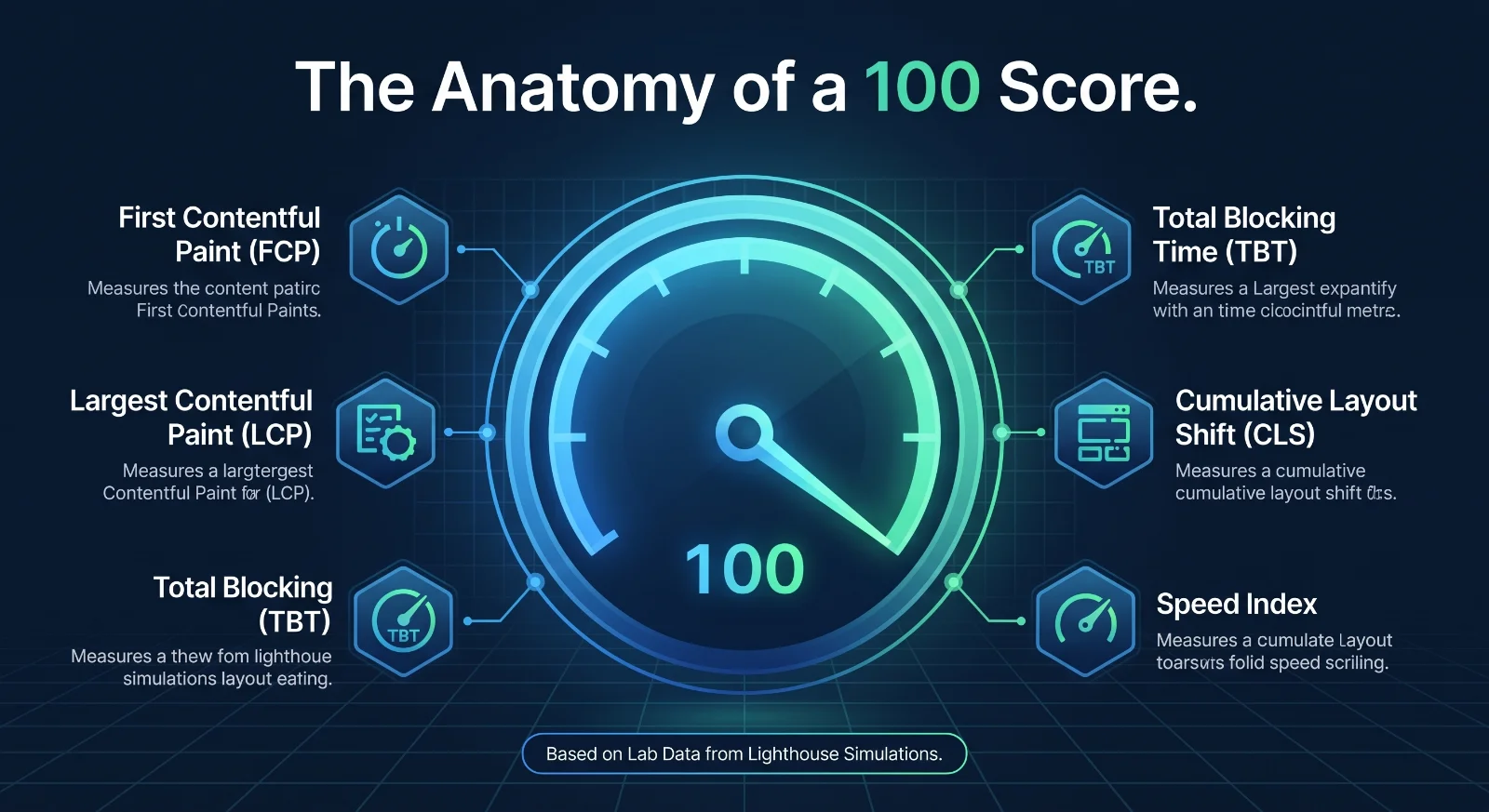
The score combines five metrics: First Contentful Paint (FCP), Largest Contentful Paint (LCP), Total Blocking Time (TBT), Cumulative Layout Shift (CLS) and Speed Index. TBT, LCP and CLS together make up most of it, according to Lighthouse’s scoring documentation.
The three Core Web Vitals, measured in field data at the 75th percentile, are:
Metric
What it measures
“Good” threshold
LCP (Largest Contentful Paint)
How fast the main content appears
2.5 seconds or less
INP (Interaction to Next Paint)
How quickly the page responds to taps and clicks
200 milliseconds or less
CLS (Cumulative Layout Shift)
How much the layout jumps while loading
0.1 or less
INP replaced First Input Delay in March 2024. Because INP needs real users, the lab test uses Total Blocking Time as a stand-in.
Two honest caveats. Scores change from run to run. And mobile is harder than desktop, because the test simulates a slower device and network. The Stardom Now result is a desktop score, so treat mobile and real-user data as a separate target on your own site.
The seven areas that move the score most
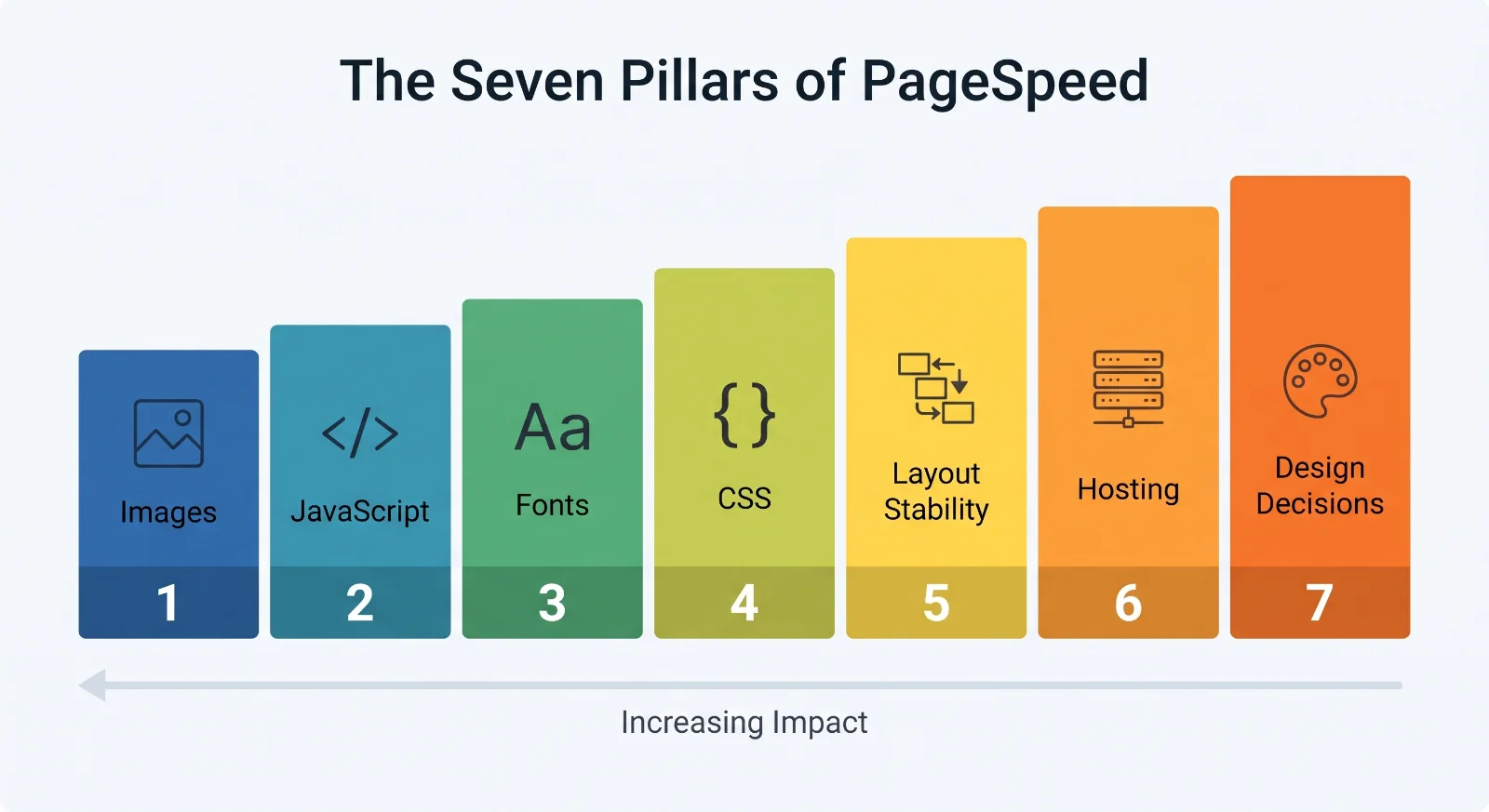
These are the areas we check on every website build, roughly in order of impact. For each one, the diagnostics section of your PageSpeed report shows whether it’s a problem on your site.
1. Images
Images are usually the heaviest part of a page and are often the element that decides your Largest Contentful Paint.
• Serve modern formats (WebP or AVIF) instead of large JPEGs and PNGs.
• Serve each image at the size it’s actually displayed, using responsive srcset sizes.
• Set explicit width and height so the browser reserves space before the image loads.
• Lazy-load images below the fold, but never the main hero image. Preload that one instead.
How to check: the PageSpeed report names your LCP element. If it’s an image, start here.
2. JavaScript
Total Blocking Time carries the most weight in the score, and JavaScript is the usual cause.
• Remove libraries and code the site doesn’t use.
• Split code so each page loads only what it needs.
• Defer scripts that aren’t needed for the first screen.
• Delay third-party tags (chat widgets, tracking, embeds) until after the page is usable.
Ask one question of every script: does it earn its cost?
How to check: look at Total Blocking Time and the unused JavaScript diagnostic.
3. Fonts
Fonts can block text from appearing and can cause layout jumps.
• Limit the site to one or two font families and only the weights you use.
• Self-host fonts, or connect early to the font host, and preload the main one.
• Use font-display: swap so text shows immediately.
How to check: watch the page load on a throttled connection. If text appears late or shifts when the font arrives, fix this.
4. CSS
• Inline the small amount of CSS needed for the first screen and load the rest without blocking rendering.
• Remove unused styles, which pile up fast on sites built from themes and page builders.
5. Layout stability
Layout shifts happen when content moves after the visitor starts reading, and they cause misclicks.
• Reserve space for images, videos, embeds and banners.
• Avoid inserting content above what the visitor is already reading.
• Test with the cookie banner and chat widget switched on, since they are common causes.
How to check: the report shows your CLS value and highlights the elements that moved.
6. Hosting and delivery
• Serve the site through a CDN, so visitors get files from a nearby location.
• Set caching headers so repeat visits load faster.
• Enable Brotli or Gzip compression.
• Use HTTP/2 or HTTP/3 and keep the server response time (TTFB) low.
How to check: the report flags a slow initial server response when it’s a problem.
7. Design decisions
Many speed problems start in design, before a line of code is written: autoplay video, oversized hero images, heavy animation, five typefaces. On a group website like Stardom Now, where one site presents twenty-plus brands, every brand can add its own images, scripts and effects. A shared performance budget agreed before design starts keeps that in check. It’s why our UI/UX design and development work from the same brief.
Mistakes to avoid
• Chasing 100 on one run.
Test several times, in a private window with extensions off, and judge the trend rather than one score.
• Optimizing only the homepage.
Test each page template: service pages, case studies, blog posts, contact.
• Lazy-loading the hero image.
It delays the main content.
• Removing things users need just to hit a score.
Don’t drop consent banners, analytics or accessibility features without weighing the trade-off.
• Ignoring mobile and real-user data.
Your customers use phones on ordinary connections.
• Letting it slip after launch.
One new tracking script or oversized image can undo weeks of work, so check the score before every release.
How to measure it properly
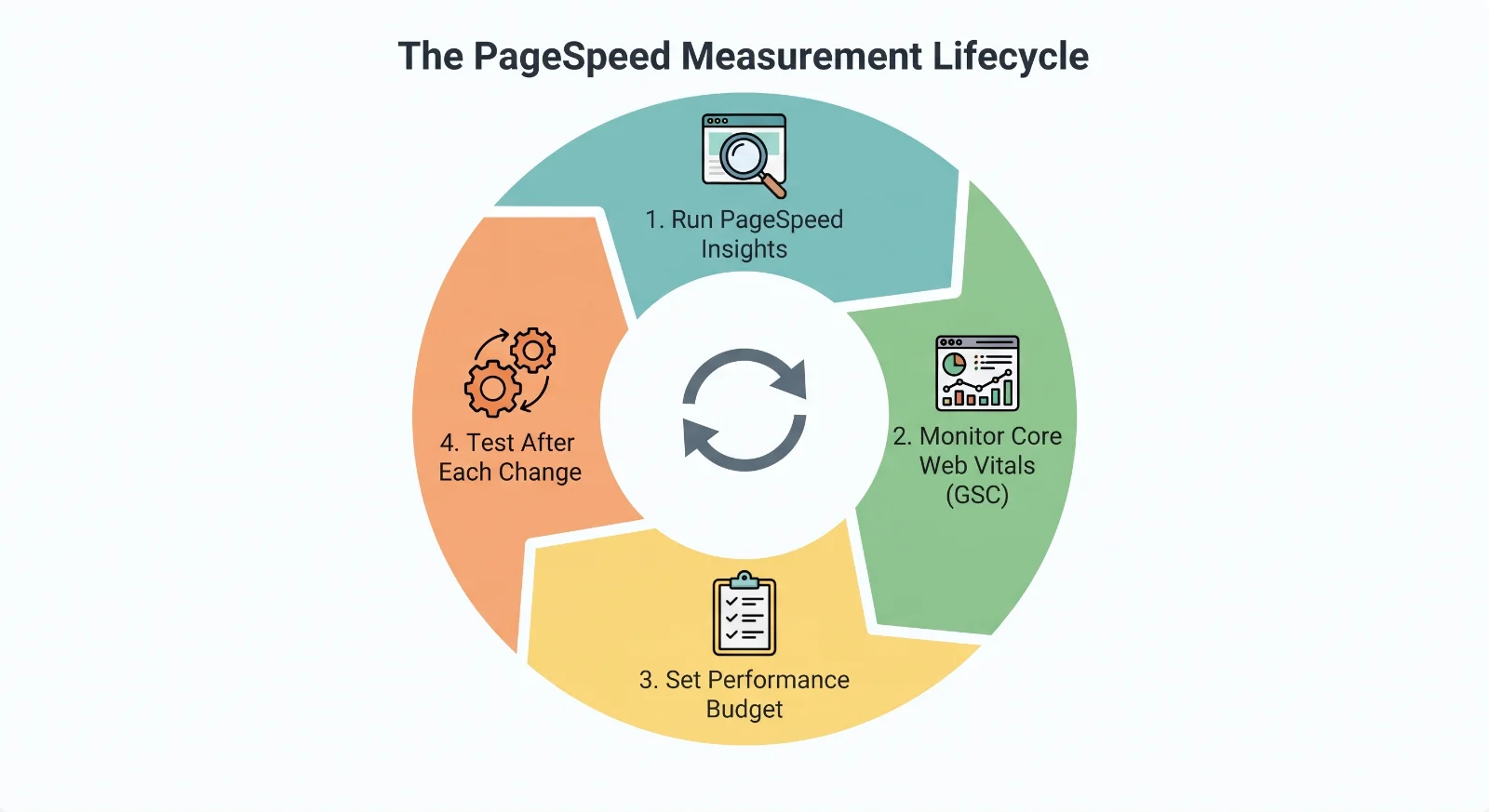
1. Run PageSpeed Insights on each key page and note both field data and lab data.
2. Open the Core Web Vitals report in Google Search Console to see which groups of pages pass or fail for real users.
3. Use Lighthouse in Chrome DevTools to find the exact causes, and WebPageTest to inspect the loading waterfall.
4. Set a simple performance budget, for example a maximum page weight and an LCP target of 2.5 seconds, and check it before every release.
5. Re-test after each change so you know what actually helped.
Does a 100 score help your Google rankings?
Partly, and less than most people expect. Google’s page experience guidance lists Core Web Vitals as one of several signals, and Google says relevant, helpful content can still rank above a faster page. The 0–100 Lighthouse score is a diagnostic tool, while Google uses real-user Core Web Vitals data.
So the honest reason to build a fast site is the visitor. Pages that load and respond quickly are easier to use, easier to read on a phone, and easier to buy from. Rankings are a smaller bonus on top.
Copy-and-use speed checklist
• Images are WebP or AVIF and sized to their display size.
• Every image has width and height set.
• The hero image is preloaded and not lazy-loaded.
• Images below the fold are lazy-loaded.
• No more than two font families, and only the weights you use.
• Fonts use font-display: swap.
• Unused JavaScript and CSS libraries are removed.
• Non-critical scripts are deferred.
• Third-party tags load after the page is usable.
• Space is reserved for embeds, banners and ads.
• The site is served through a CDN with caching and compression.
• Server response time is checked and fixed if slow.
• Every page template is tested on mobile and desktop.
• A performance budget is agreed and checked before each release.
• Core Web Vitals are monitored monthly in Search Console.
What a 100 score looks like in practice
Our Stardom Now case study reports a 100 Google PageSpeed score on desktop for a single website serving a group of twenty-plus brands. Scores shift as a site changes, so test any site yourself in PageSpeed Insights rather than trusting a screenshot, ours included.
Frequently asked questions
Is a 100 PageSpeed score necessary?
No. A score in the 90s with passing Core Web Vitals in real-user data is excellent. Treat 100 as a stretch goal, and don’t sacrifice features users value just to reach it.
Does the PageSpeed score directly affect Google rankings?
Not the 0–100 lab score itself. Google uses real-user Core Web Vitals data as part of its page experience signals, alongside many other factors, and content relevance still matters most.
Why is my mobile score lower than my desktop score?
The mobile test simulates a slower phone and network, so heavy JavaScript and large images hurt more. Fixing mobile usually fixes desktop too.
Why does my score change every time I test?
Lab tests vary with network conditions, server load and the testing device. Run the test several times and look at the pattern.
How long does it take to speed up a website?
Image, font and caching fixes can often be done in days. Reworking heavy JavaScript or hosting takes longer. If you want to know where your site stands, our Cloud & DevOps audit takes about a week.
Want a website this fast?
See how we built the Stardom Now website, explore our website development service, or ask about our one-week Cloud & DevOps audit. When you’re ready, tell us about your project and you’ll get a clear plan, timeline and price within 48 hours.